
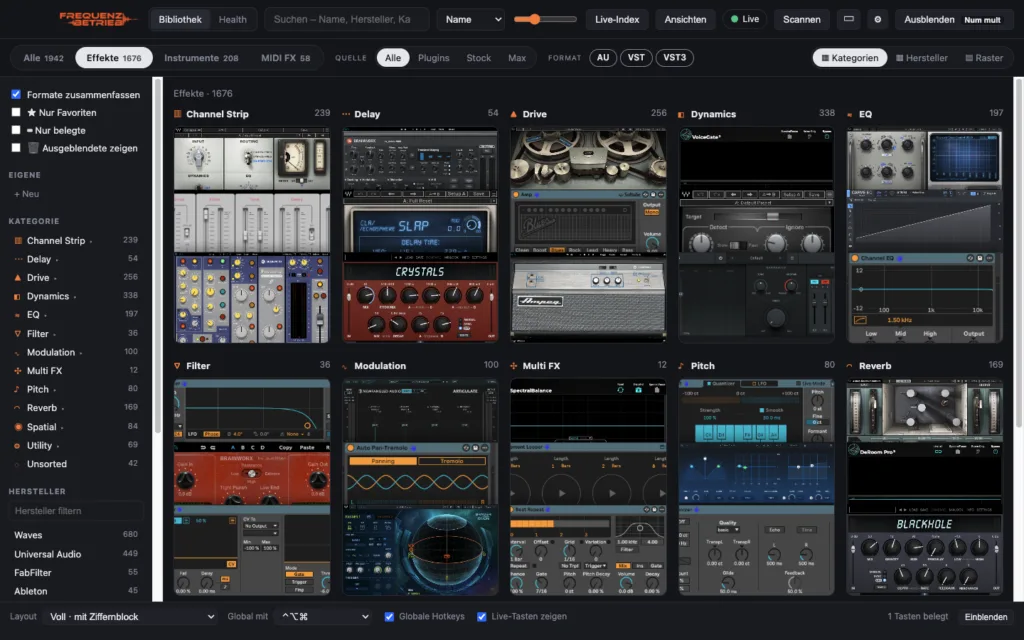
Sound familiar? You’re deep in a track, the idea is right there – and you’re scrolling through 2,000 plugin names, half of which you can’t place anymore. That’s exactly why we built the FREQUENZBETRIEB Plugin Organizer: a free tool that shows all your plugins with a real picture and loads them straight into Ableton Live with a click or a key.
What the Plugin Organizer does
The Plugin Organizer runs next to Live, not inside it. It isn’t a plugin, so it never sits in your signal path and doesn’t cost your project any CPU. On first launch it gathers everything on your Mac: AU, VST, VST3, AAX and CLAP, plus Live’s own stock devices, your Max for Live devices and all racks and presets from the User Library, Packs and Core Library.
See what you load
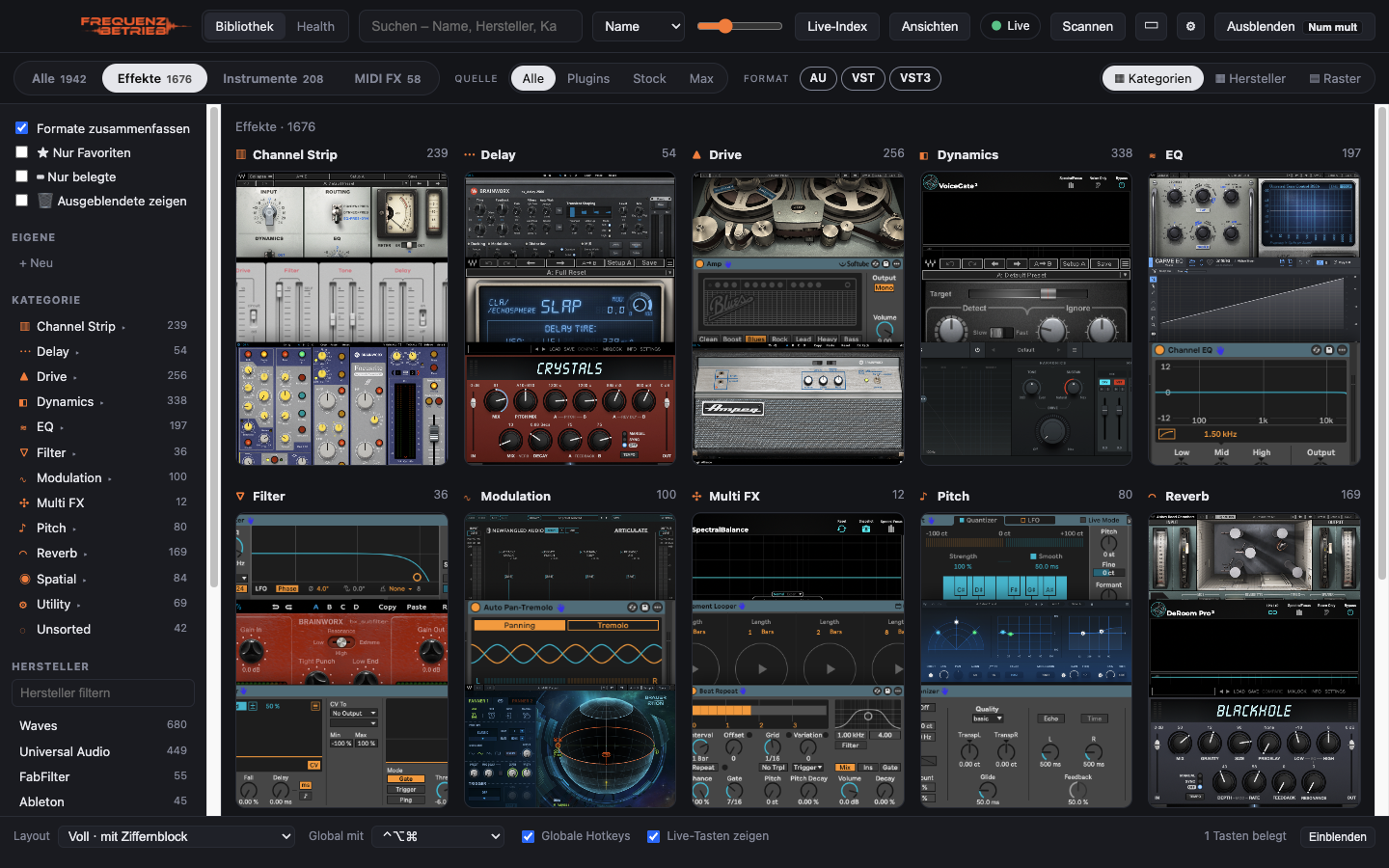
Instead of names you get pictures. One click on “All pictures” is all it takes: the Organizer photographs AU and VST3 plugins invisibly in the background and gets everything else – VST2, stock and Max devices – straight from Live: load, snapshot, remove. Your set stays clean. In the end almost every plugin has a tile you recognise at a glance, and the “No picture” filter shows what’s still missing.
Order without tidying up
- Automatic categories with subcategories: Dynamics → Compressor, Limiter, De-esser, Gate … EQ, Reverb, Delay, Drive, Synth, Drums and more.
- Effects, instruments and MIDI FX neatly separated – and where the automatic sorting gets it wrong, one right-click fixes it.
- Vendor view, favourites and your own collections with colours – say “Mastering”, “Schranz Leads” or “Live Set”.
- Duplicate formats (AU, VST, VST3 of the same plugin) are merged into one tile.
One click and it’s on the track
Click a tile – and the plugin lands on the selected track in Ableton Live. Hold Shift and the Organizer creates a new track first: MIDI for instruments, audio for effects. It picks exactly the right device, even when Live lists the plugin under a different name. With the included Live script it talks to Live’s browser directly – the plugin is there in a fraction of a second.
Your plugins on keys
Drag a plugin onto a key of the on-screen keyboard – F-keys, numpad and all. From then on ⌃⌥⌘ plus that key in Live brings it up. If you like, switch the keys to work without any modifier while Live is in front. Keys that Live uses itself are marked, so you don’t overwrite anything important. And for each key you decide whether the plugin goes onto the current track or a new one.
Three views for every workflow
- Full window – the whole library with every filter.
- Sidecar – a slim strip at the edge of the screen right next to Live, categories as picture rows.
- Mini – a small search window: type, arrow key, Enter, done.
A key of your choice hides the Organizer and brings it back. If you want, it stays on top all the time or disappears as soon as a plugin is loaded.
Racks & presets
Not just plugins: the Organizer also finds your instrument, drum, effect and MIDI racks (.adg) and device presets (.adv) – from the User Library, every installed pack and Live’s Core Library. On our machine that was more than 10,000 entries. So they don’t bury your plugins, they get their own “Presets” tab, sorted by rack type and device. Presets show the picture of their device, and they load just like a plugin: click, key or Stream Deck.
Stream Deck: plugins with pictures on the keys
With the free Stream Deck plugin you put plugins, stock devices or racks right on the keys of your Elgato Stream Deck – with the real picture of their interface. A short press loads onto the selected track, a long press onto a new one. There’s also a complete plugin browser on the deck: press “Open browser” and page through effects, instruments, MIDI FX, stock, Max, presets, favourites and your collections – category by category, with pictures, without touching the mouse.
Remote on your phone and tablet
Switch on the remote in the settings, scan the QR code – and your phone or tablet becomes a plugin browser: areas, categories, search, favourites and collections, all with pictures. Tap to load the plugin into Live, onto a new track if you like. No app needed, just the same Wi-Fi. Access only works with the secret key from the QR code.
Always up to date, starts with your Mac
The Organizer checks for a new version at startup and every few hours. One click on “Update now” – it downloads the update, replaces itself and restarts. Your library, pictures, keys and collections stay as they are. If you like, it also starts automatically when you log in.
Back up your keys, favourites, collections and all pictures to a single file with one click – to keep them safe or to take everything to another computer. A factory reset is one button away. New plugins are found automatically and marked “NEW”. And the interface speaks English and German, on the Stream Deck too.
Library Health: what’s eating your disk?
The Health view shows how much space your plugins take and how much you can get back: plugins that only run under Rosetta, VST2 copies of plugins you already have as VST3, AAX files without Pro Tools, and plugins you never use. It even reads your Live sets and tells you which plugins in them are missing on this machine.
What’s new?
The latest versions at a glance – this list updates itself:
.po-changelog { border: 1px solid rgba(128,128,128,.3); border-radius: 10px; padding: 14px 18px; }
.po-changelog h4 { margin: 14px 0 4px; font-size: 1.05em; }
.po-changelog h4:first-child { margin-top: 0; }
.po-changelog h4 small { font-weight: normal; opacity: .65; margin-left: 6px; }
.po-changelog ul { margin: 0 0 6px 1.1em; padding: 0; }
.po-changelog li { margin: 3px 0; }
.po-changelog .po-latest { display: inline-block; font-size: .75em; font-weight: 700; padding: 1px 7px; border-radius: 99px; background: #ff7a3d; color: #111; margin-left: 6px; vertical-align: 2px; }
.po-changelog .po-all { display: block; margin-top: 8px; font-size: .9em; }
(function () {
document.querySelectorAll(‘.po-changelog’).forEach(async function (box) {
var en = box.getAttribute(‘data-lang’) === ‘en’;
var count = Number(box.getAttribute(‘data-count’)) || 5;
var repo = ‘https://github.com/Frequenzbetrieb/plugin-organizer’;
var file = en ? ‘CHANGELOG.en.md’ : ‘CHANGELOG.md’;
var esc = function (s) { return s.replace(/[&”]/g, function (c) { return { ‘&’: ‘&’, ”: ‘>’, ‘”‘: ‘"’ }[c]; }); };
// Tiny Markdown: **bold**, [text](link).
var inline = function (s) {
return esc(s).replace(/**(.+?)**/g, ‘$1‘)
.replace(/[([^]]+)]((https?:[^)s]+))/g, ‘$1‘);
};
try {
var res = await fetch(‘https://raw.githubusercontent.com/Frequenzbetrieb/plugin-organizer/main/’ + file, { cache: ‘no-cache’ });
if (!res.ok) throw new Error(res.status);
var text = await res.text();
var sections = text.split(/^## /m).slice(1, count + 1);
box.innerHTML = sections.map(function (sec, i) {
var lines = sec.split(‘n’);
var head = lines[0].match(/^[([^]]+)]s*[–-]?s*(.*)$/) || [null, lines[0], ”];
var items = lines.slice(1).filter(function (l) { return /^s*-s+/.test(l); })
.map(function (l) { return ‘
‘; }).join(”);
return ‘
Version ‘ + esc(head[1]) + (i === 0 ? ‘‘ + (en ? ‘latest’ : ‘aktuell’) + ‘‘ : ”)
+ (head[2] ? ‘‘ + esc(head[2]) + ‘‘ : ”) + ‘
- ‘ + items + ‘
‘;
}).join(”) + ‘‘
+ (en ? ‘Full changelog →’ : ‘Alle Versionen →’) + ‘‘;
} catch (e) {
box.innerHTML = ‘‘
+ (en ? ‘Show the changelog on GitHub →’ : ‘Versionsgeschichte auf GitHub ansehen →’) + ‘‘;
}
});
})();
Download
Plugin Organizer for macOS (Apple Silicon & Intel):
→ Download now (DMG)
Stream Deck plugin (optional):
→ Download and double-click to install.
Plugin Organizer for Windows 10/11 (64-bit) – beta:
→ Download now (installer)
System requirements
- macOS 13 Ventura or later, Apple Silicon or Intel – or Windows 10/11 (64-bit)
- Ableton Live 12 for loading plugins (library, sorting and Health also work without Live)
Installation on the Mac
- Open the DMG and drag the Plugin Organizer into your Applications folder.
- The app isn’t signed by Apple (yet). So open Terminal once and enter:
xattr -dr com.apple.quarantine "/Applications/Frequenzbetrieb Plugin Organizer.app" - Launch the app. macOS asks for Accessibility (to load into Live) and – only for snapshots taken inside Live – Screen Recording. Allow both in System Settings under “Privacy & Security”.
- Activate the Live script (recommended): the Organizer installs a small script into your User Library. Restart Live once, then in Live’s settings → “Link, Tempo & MIDI” pick “Frequenzbetrieb” as a Control Surface (input/output: None). From then on it loads straight through Live – in a fraction of a second. The app walks you through it.
- Keep Live open with an empty set and click “All pictures” at the top – the Organizer now photographs all your plugins and devices. Keep Live in front while it runs.
- Done. From now on the Organizer installs new versions itself – the Terminal step is only needed the first time.
Note: the app’s interface is currently in German.
Installation on Windows
- Run the installer. Windows SmartScreen warns because the app isn’t signed: “More info” → “Run anyway”.
- Activate the Live script – especially important on Windows: restart Live, then in Live’s settings → “Link, Tempo & MIDI” pick “Frequenzbetrieb” as a Control Surface (input/output: None).
- Click “All pictures” at the top – the Organizer photographs your VST3 plugins.
What’s (still) different on Windows
The Windows version is newer and less tested than the Mac version – hence “beta”. Feedback helps us a lot. Right now:
- Pictures: the Organizer photographs VST3 plugins itself. For VST2 plugins and stock and Max devices there’s no capture inside Live on Windows yet – those tiles show the name; set your own picture with a right-click.
- Loading: with the Live script active it’s as fast and exact as on the Mac, including “on a new track”. Without the script the Organizer just types into Live’s search and loads the first hit – so do activate the script.
- Keys only in Live: hotkeys without any modifier that only apply while Live is in front are Mac-only. On Windows you use the global key combination from the keyboard settings.
- Health: the Rosetta/Intel check doesn’t apply – that’s Mac-only.
- Everything else – library, categories, collections, racks & presets, keys, Stream Deck, remote, backup, automatic updates and start at login – works on both systems.
Free and open source
The Plugin Organizer costs nothing and will stay free. The full source code is on GitHub under the AGPL-3.0 – take a look, contribute, report bugs or bring in ideas:
github.com/Frequenzbetrieb/plugin-organizer
If the tool saves you time and you’d like to support our association, we’d be glad about a donation. Every euro goes into projects like this one.
Ableton and Ableton Live are trademarks of Ableton AG, VST is a registered trademark of Steinberg Media Technologies GmbH. The Plugin Organizer is an independent project and is not affiliated with Ableton or Steinberg.
Note: this article and the software were created with the help of AI (disclosure under the EU AI Act, Art. 50).