
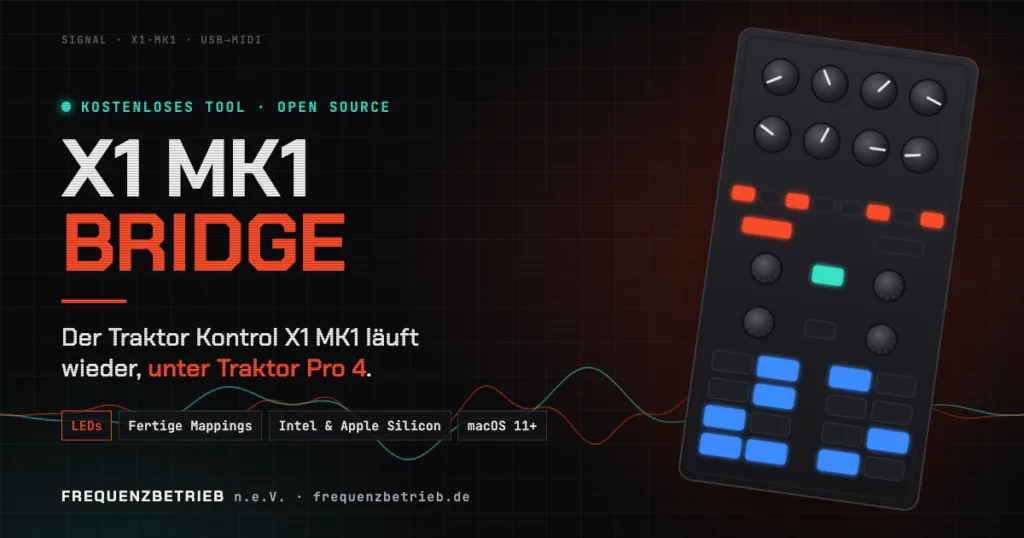
Native Instruments dropped support for the first-generation Traktor Kontrol X1 a long time ago. Since macOS Catalina, the Mac doesn’t even recognize it anymore. That’s why so many X1s are gathering dust in drawers or ending up as e-waste, even though the hardware still works perfectly. It doesn’t have to be that way: with X1 MK1 Bridge, the classic controller runs again with Traktor Pro 4. Free and open source.
What is X1 MK1 Bridge?
X1 MK1 Bridge is a small app that lives in your Mac’s menu bar. It reads the X1 directly over USB and presents it to your Mac as a regular MIDI device. Traktor sees the controller again, with every button, knob and encoder. The LEDs light up again too, because Traktor drives them back through the app. You don’t need a driver from Native Instruments.
Features
- Every control: 8 FX knobs, 4 endless encoders, all buttons, a SHIFT layer and hotcue mode (8 hotcues per deck)
- LED feedback: Play, Sync, Cue, FX status and hotcues light up just like they used to
- Two ready-made Traktor mappings: the classic layout for decks A/B, or as a companion to a four-deck controller like the S4 MK3 (FX units 3 + 4, decks C/D)
- Fully remappable: assign any button in Traktor via Learn, both on its own and with SHIFT
- Plug and play: starts automatically and picks up the X1 as soon as you plug it in, even several X1s at once
- Intel and Apple Silicon: one app for every Mac running macOS 11 or later, no Rosetta needed
Version 1.2.0 · macOS 11 or later · Intel & Apple Silicon · developed with Traktor Pro 4.5.1 · approx. 1 MB · app and included guide are currently in German
Up and running in three steps
- Install: Open the DMG and drag X1 MK1 Bridge into your Applications folder.
- Allow it once: The app isn’t registered with Apple, so macOS asks for confirmation on first launch. Go to System Settings → Privacy & Security and click “Open Anyway”. A dial icon then appears in your menu bar.
- Connect Traktor: In Traktor, go to Preferences → Controller Manager → Add… → Import TSI and pick one of the included mappings. Set the In-Port and Out-Port to “X1 MK1 Bridge”. Done.
A detailed guide is included in the download (in German). It also explains how to create your own mappings and lists every MIDI and LED number.
The X1 next to the S4 MK3
Our favorite setup: the S4 MK3 handles the decks and the mixer, while the X1 sits next to it as a dedicated effects station. With the “FX 3+4, Decks C+D” mapping, the left side of the X1 controls FX unit 3 and the right side controls FX unit 4. Transport, loops and hotcues work on decks C and D. That puts four FX units at your fingertips without switching anything on the S4. Just enable “4 FX Units” in Traktor under Preferences → Effects.
Open source & thanks
X1 MK1 Bridge is free software under the Apache License 2.0. The complete source code is available for download. The tool builds on earlier work from the community: many thanks to x1-mk1-usb2midi and traktor_x1 for decoding the X1’s USB protocol. For USB communication, the tool uses libusb (LGPL-2.1).
Good hardware belongs on the table, not in the trash. If the tool helps you out, we’d love to hear your feedback, or to welcome you as a member or supporter of FREQUENZBETRIEB n.e.V., the non-profit association for electronic music and club culture from Beelitz, Germany.
Note: X1 MK1 Bridge is an unofficial community project and is not affiliated with, endorsed by or reviewed by Native Instruments GmbH. “Native Instruments”, “Traktor” and “Kontrol” are trademarks of Native Instruments GmbH. Use at your own risk; provided without warranty.